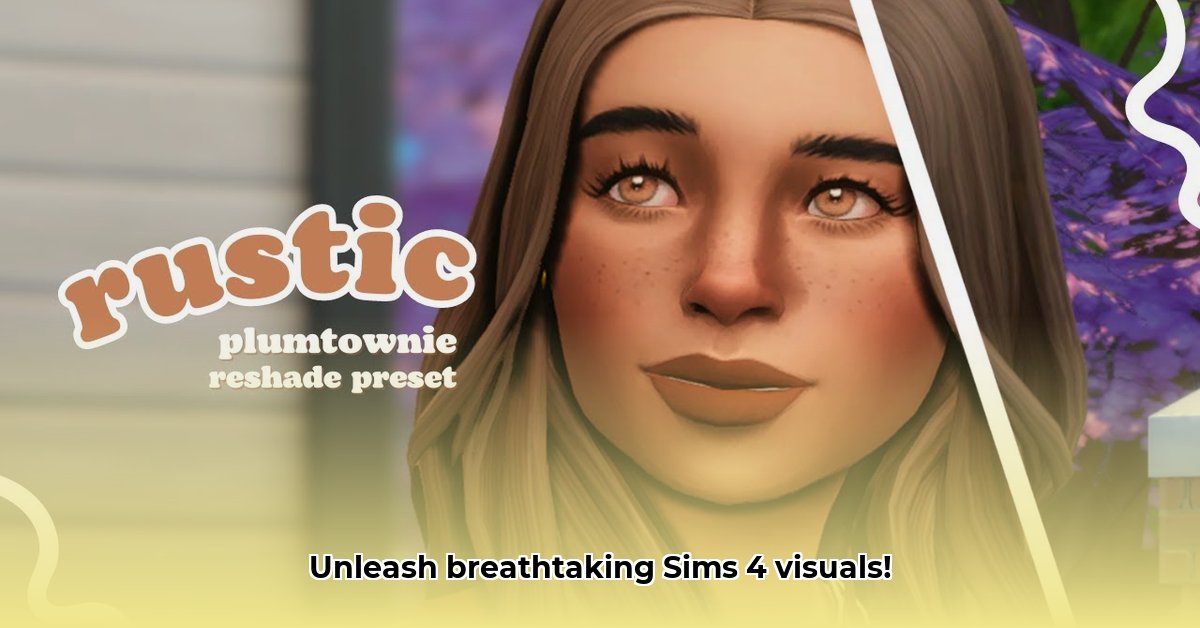
What is ReShade Sims 4?
Want to transform your Sims 4 game from visually acceptable to breathtaking? ReShade is a powerful post-processing injector (a program that adds visual effects after the game renders) that can dramatically enhance your game's graphics. It allows you to customize lighting, shadows, colors, and more, giving your Sims a gorgeous new look without modifying the game's core files. Think of it as a high-powered filter, but infinitely more customizable. This guide will walk you through installing and using ReShade, even if you're new to modding.
Installing ReShade: A Step-by-Step Guide
Installing ReShade is straightforward, but a few crucial steps ensure it works correctly. Remember, improper installation can lead to game crashes or performance issues.
Download ReShade: Visit the official ReShade website and download the latest version compatible with your operating system (usually 64-bit).
Locate Your Sims 4 Executable: Find the Sims 4 application file (the one you click to launch the game). It's typically located in your Documents/Electronic Arts/The Sims 4 folder.
Run the ReShade Installer: Open the downloaded installer. This is where precision matters: Select DirectX 9 when prompted. Choosing the incorrect DirectX version is the most common cause of installation failure.
Choose Your Effects: The installer will present a list of available effects. Start with a few to avoid performance issues (more on this later). You can always add more later.
Launch Sims 4: Start your game. You'll typically need to press the Home key (or a similar key, depending on your setup) to access the ReShade menu.
Choosing and Managing Your ReShade Effects
ReShade offers a vast array of effects, but using too many can significantly impact your game's performance, causing lag or stuttering. Finding the right balance is key.
Start Small: Begin with 2-3 effects to see how they impact your game. Popular choices include color grading, sharpening, and ambient occlusion.
Monitor Your FPS: Keep an eye on your frames per second (FPS) while experimenting with different effects. If your FPS drops noticeably, reduce the number of effects or their intensity.
Understand Effect Impact: Different effects have varying performance costs. Depth of field, for example, is often more demanding than simple color adjustments.
Utilize Presets: Many pre-made presets are available online, offering pre-configured combinations of effects. These can be a great starting point for experimentation.
Understanding Preset Types: Gameplay vs. Photography
Presets are collections of effects designed for different purposes. Photography presets often prioritize visual fidelity, even at the cost of performance. Gameplay presets prioritize smooth performance, offering a pleasing visual enhancement without causing lag. Choose the type that best suits your needs.
Troubleshooting Common Issues
Even with careful installation, issues can arise. Here are some common problems and their solutions:
Game Crashes: This often indicates a compatibility issue. Try updating ReShade to the latest version, or temporarily disable other mods to see if they're causing conflicts.
Performance Problems (Lag): Reduce the number or intensity of your effects. Lowering your game's resolution can also help. Ensure your graphics card drivers are up-to-date.
ReShade Doesn't Work: Double-check you selected DirectX 9 during installation and that Sims 4 is running in windowed or borderless windowed mode, not fullscreen.
Optimizing Your ReShade Experience for Smooth Gameplay
The key to a great Reshade experience lies in finding the perfect balance between visual enhancements and performance. Remember, adding more effects increases processing demands. Experimentation is key; what works best depends on your hardware and preferences. Don't be afraid to tweak settings until you achieve the desired look without sacrificing gameplay smoothness.
Key Takeaways:
- Reshade enhances Sims 4 visuals but can affect performance; balance is crucial.
- Careful preset selection and effect management are vital for smooth gameplay.
- Experimentation is encouraged; your ideal setup depends on your hardware and preferences.
Remember to always back up your game files before installing mods. This allows for easy restoration if something goes wrong. Happy Simming!
⭐⭐⭐⭐☆ (4.8)
Download via Link 1
Download via Link 2
Last updated: Wednesday, April 30, 2025